


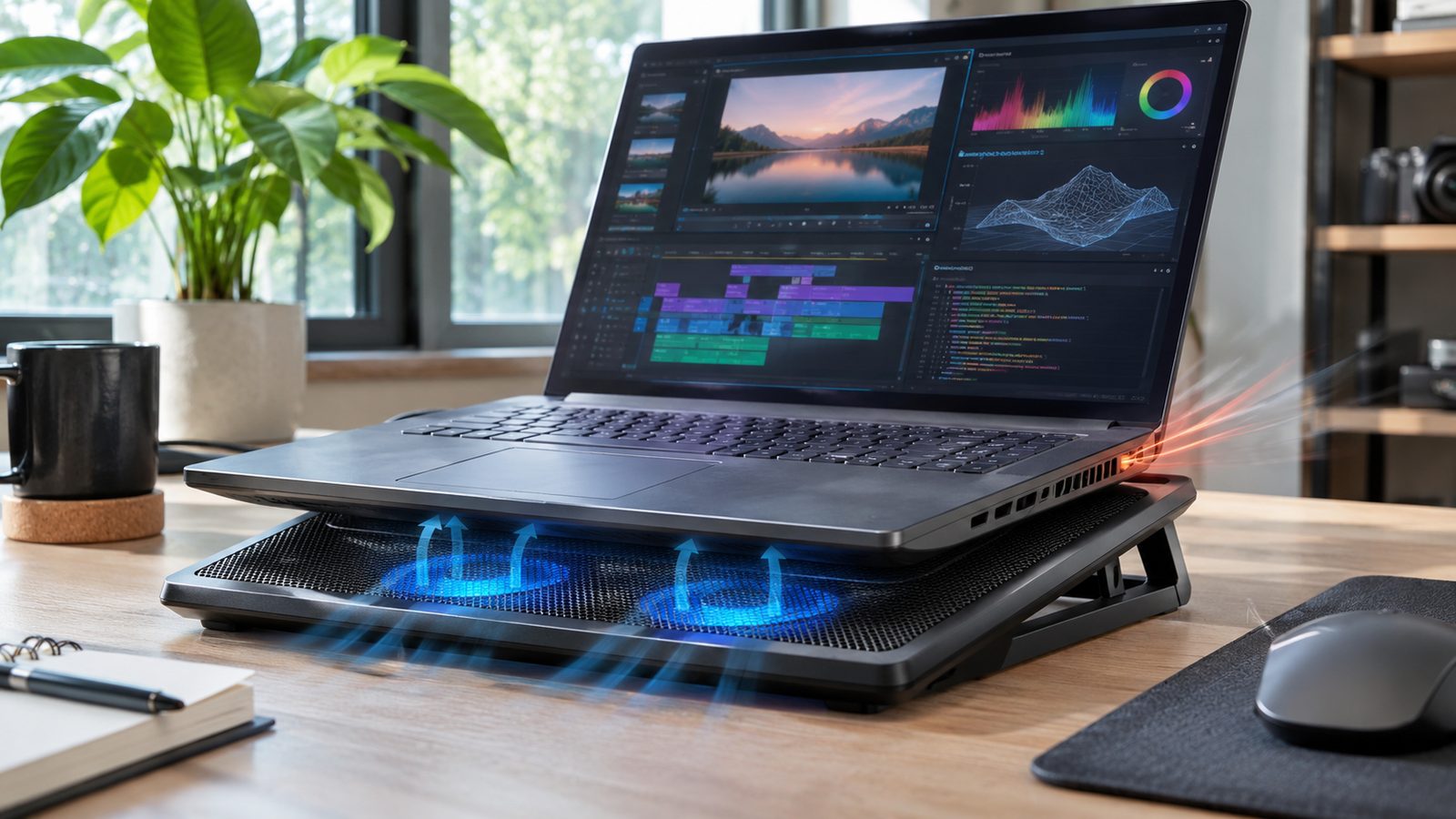
A cooling pad can help a laptop manage heat, but only when the design matches the computer. The biggest factor is whether added airflow reaches the laptop’s intake vents. For many everyday laptops, better elevation and clear vents may matter more than extra fans. Quick answer: Laptop coolers work by raising the computer and directing more room air toward its underside. They help most with bottom-intake gaming laptops and demanding workloads. They cannot repair clogged vents, failing fans, damaged cooling hardware, or other internal problems.
| What to check | Why it matters | What to look for |
|---|---|---|
| Vent location | Extra air must reach the laptop’s intake | Fans aligned with bottom vents |
| Laptop size | The computer needs stable support | A platform matching its footprint |
| Workload | Heavy workloads create more sustained heat | Active cooling for gaming or editing |
| Fan control | Maximum airflow is not always necessary | Adjustable fan speed |
| Noise | Extra fans add sound | A usable balance of airflow and noise |
| Surface | Soft materials can restrict ventilation | A rigid base with open air intake |
| Ergonomics | Height affects posture and typing | Stable, adjustable tilt |
| Power | Fan models need electricity | Convenient USB or external power |
How a Cooling Pad Works With Laptop Airflow
A laptop already contains a thermal system built around vents, fans, heat pipes, and heatsinks. Active laptop coolers add airflow from outside the computer. Passive models mainly raise the laptop so its existing intake has more room. That distinction matters because external fans do not cool the processor directly. They supply more air around areas where the laptop can draw it inside. A pad offers little benefit when a solid bottom panel separates its fans from useful intake openings. More fan count does not automatically mean better cooling. Fan position, airflow direction, vent alignment, and platform design matter more. Some designs also use a seal to concentrate air around the laptop’s intake area. Modern processors can reduce performance when thermal limits are reached. Processor throttling is a protection mechanism that lowers clock speed under excessive heat. Better airflow may therefore help some machines sustain demanding workloads more consistently.
When a Laptop Cooler Helps Most
Gaming laptops are strong candidates because many draw air through large openings underneath. They can also maintain demanding CPU and graphics workloads for long periods. A compatible fan platform can supply those intake areas with additional airflow. The same logic applies to video editing, rendering, compiling, and other sustained workloads. Short web browsing sessions usually create much less thermal demand. An accessory becomes more useful when heat and fan activity persist throughout your normal workload. A rigid platform can also help if you often use a laptop near soft materials. Beds, blankets, cushions, and similar surfaces can restrict intake openings. Manufacturers generally advise using laptops on hard, flat surfaces to maintain airflow. Mindspaper’s Alienware X14 review offers an example of a thin gaming machine built around active thermal management. Thin performance laptops have limited internal space for moving heat. External airflow can be useful when the underside provides suitable intake access.
When You Probably Do Not Need One
A thin everyday laptop may gain little if it lacks useful bottom intake vents. Fanless computers are another obvious case because their thermal design works differently. Blowing air at a closed panel does not recreate an internal active cooling system. If your computer already stays comfortable and performs consistently, extra hardware may offer little practical value. A simple elevated stand could provide the clearance you need. This approach can also avoid the additional noise and power requirements of powered fans. Mindspaper’s MacBook Air and MacBook Pro comparison shows why laptop design matters. The two families use different thermal approaches despite sharing similar portable form factors. Your buying decision should start with the cooling design you already own.
What a Laptop Cooler Cannot Fix
A fan platform should not become a workaround for a mechanical problem. Dust, blocked vents, damaged internal fans, or failing thermal hardware need proper troubleshooting. An accessory cannot restore a defective internal cooling system. Persistent shutdowns, severe performance drops, or unusual fan behavior deserve closer attention. Common overheating causes include blocked vents, dust, damaged fans, and failing cooling hardware. Start with the computer itself before adding another device beneath it. You should also stop using a machine showing serious physical warning signs. A swollen chassis, chemical smell, or extreme residual heat can indicate a safety problem. Those symptoms call for qualified service rather than more external airflow.
Active Fan Pad vs. Sealed Blower vs. Passive Stand
These three approaches solve slightly different problems. Comparing them by airflow and use case is more useful than counting fans. Your laptop’s vent layout should decide which design gets serious consideration.
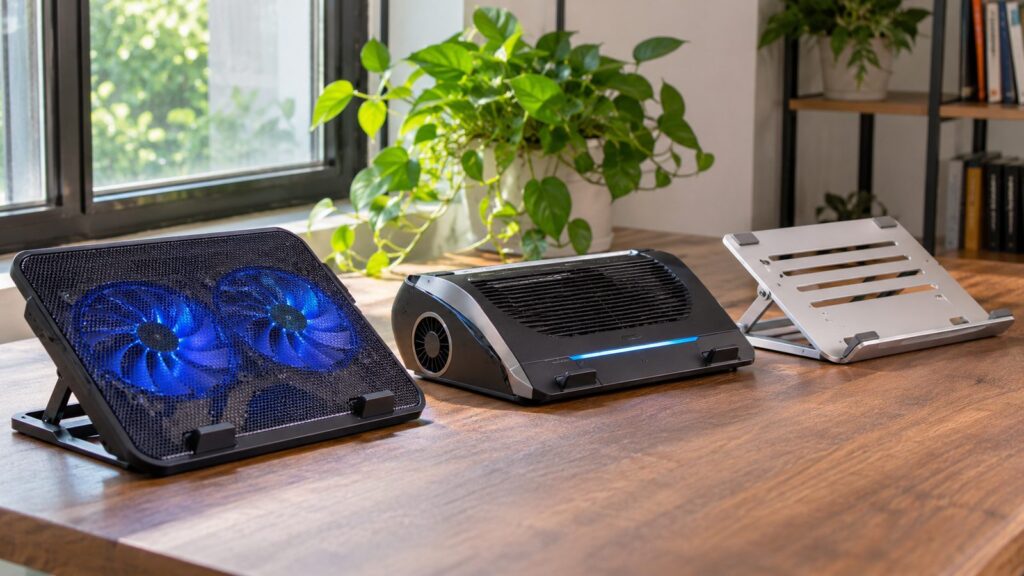
| Type | Main advantage | Main drawback | Best fit |
|---|---|---|---|
| Open fan platform | Adds airflow while raising the laptop | Results depend heavily on fan placement | Laptops with broad bottom vents |
| Sealed blower design | Concentrates air around an intake area | Can be louder and less portable | High-load laptops with compatible undersides |
| Passive stand | Adds clearance without powered fans | Does not actively increase airflow | Lighter workloads and well-cooled laptops |
Open fan platforms. Pros: simple setup, broad compatibility, and adjustable models are widely available. Cons: air can escape around the laptop, and fan locations may miss important vents. They make the most sense when you can visually match the fans to the intake area. Sealed blower designs. Pros: focused pressure can send more airflow toward compatible underside vents. Cons: the seal must fit correctly, and stronger fans can produce more noise. These models are most relevant for demanding gaming systems rather than basic office machines. Passive stands. Pros: no fan noise, no extra power draw, and fewer moving parts. Cons: they depend entirely on the laptop’s own cooling hardware. They are often the sensible first step when the main problem is limited clearance.
Verdict
Choose an active fan platform when your laptop has accessible bottom intakes and regularly handles sustained workloads. Consider a focused blower design only when its seal matches your machine well. Start with a passive stand when you mainly need clearance, ergonomics, or better ventilation.
What to Look for Before Buying
Start by turning the laptop over and identifying its intake openings. Do not assume every grille is an intake because some openings may serve speakers or other components. Your manufacturer’s manual can help confirm the airflow layout. Next, measure the laptop rather than relying only on its advertised screen size. The platform should support the chassis securely without covering ports or exhaust areas. A stable fit also matters when you use raised viewing angles. Look for adjustable fan control if you choose an active model. Maximum speed may be unnecessary during lighter work. Having control lets you balance airflow against noise during different workloads. Pay attention to the pad’s own intake path as well. Fans cannot move much air if the platform is pressed into bedding or thick fabric. The accessory itself needs access to room air. Extra USB ports, lighting, and phone holders are convenience features rather than cooling fundamentals. Buy them only if they fit your setup. Airflow alignment, stability, and usable fan control deserve priority. If gaming is your main concern, Mindspaper’s PC gaming setup guide can help place cooling within a broader desk setup. Its gaming rig component guide also explains why thermal planning matters around performance hardware. The same principle applies to portable gaming systems.
How to Set Up a Laptop Cooler Correctly
- Inspect the laptop’s underside. Locate the main intake openings before positioning the computer.
- Place the platform on a rigid surface. Keep its own fan intakes away from blankets, cushions, and loose fabric.
- Align the airflow with the laptop vents. Move adjustable fans or reposition the computer where the design allows.
- Keep exhaust areas clear. Do not let the platform, cables, or nearby objects block rear or side exhausts.
- Start at a moderate fan setting. Increase speed during demanding work if added airflow appears useful.
- Test using the same workload. Compare fan behavior, performance consistency, and temperatures under similar conditions.
- Clean accessible vents regularly. Added airflow works poorly when dust already restricts the laptop’s cooling path.
This testing method matters more than chasing a universal benchmark. Different laptops respond differently to the same accessory. Room conditions and workload can also change the result.
A Simple Test Before Spending Money
Raise the rear of your laptop slightly while keeping all vents unobstructed. Then repeat a demanding task that normally causes heavy fan activity. If improved clearance helps, airflow underneath the chassis may be part of your problem. Next, inspect where the laptop pulls in air. Large bottom intakes make an active platform more promising. Small hinge openings or a mostly sealed underside make the case less convincing. This quick test cannot predict an exact result from a powered accessory. It can reveal whether the machine responds to better ventilation. That information is more useful than choosing a model from fan count alone.
Other Meanings of “Cooling Pad”
The phrase can also describe pet cooling mats made for dogs or cats. Those products focus on keeping an animal comfortable rather than ventilating electronics. Their materials and safety considerations are entirely different. Bed and pillow cooling pads are another separate category. They aim to improve sleep comfort through breathable materials or active temperature control. They should not be confused with equipment designed to support a computer. For technology searches, laptop accessories remain the most relevant interpretation. That is especially true when the search involves gaming, overheating, fan noise, or performance. Product selection should therefore begin with laptop airflow rather than unrelated cooling products.
Frequently Asked Questions
Do I need a cooling pad for gaming?
Not every gaming laptop needs one, but many have bottom air intakes that can benefit from extra airflow. The accessory is most useful during sustained workloads where the laptop already works near its thermal limits. Check vent alignment before buying.
Do laptop cooling fans improve performance?
They may help a heat-limited laptop maintain performance more consistently. They do not add processing power or upgrade the graphics hardware. Any performance effect depends on whether heat was limiting the system beforehand.
Is a laptop stand enough?
A stand can be enough when the main problem is poor clearance beneath the computer. It can also improve screen height without adding fan noise. Active airflow becomes more appealing when elevation alone does not meet your needs.
Can a laptop cooler fix overheating?
It can improve airflow, but it cannot repair damaged or obstructed cooling hardware. Clean vents and investigate persistent fan, shutdown, or performance problems first. Treat the accessory as supplemental cooling rather than a repair.
Should the fans blow into the laptop?
Most active platforms direct room air toward the underside of the computer. That approach works best when the laptop takes in air from that area. Always avoid blocking its existing exhaust paths.
Is more fan speed always better?
No, because usable airflow depends on alignment and the laptop’s own vent design. Higher speed may mainly add noise when the air cannot reach useful intake openings. Adjustable controls let you find a sensible balance.
The Bottom Line
The right laptop cooler should match the machine rather than promise a dramatic universal result. Bottom-intake gaming laptops and other high-load systems have the strongest case for active airflow. Many lighter laptops may need nothing more than unobstructed vents and better elevation. Check the underside first, choose a stable platform, and align airflow with the real intake openings. Test the setup under the same workload before deciding whether it helps. That approach gives you useful evidence without relying on invented temperature claims or marketing promises. —