


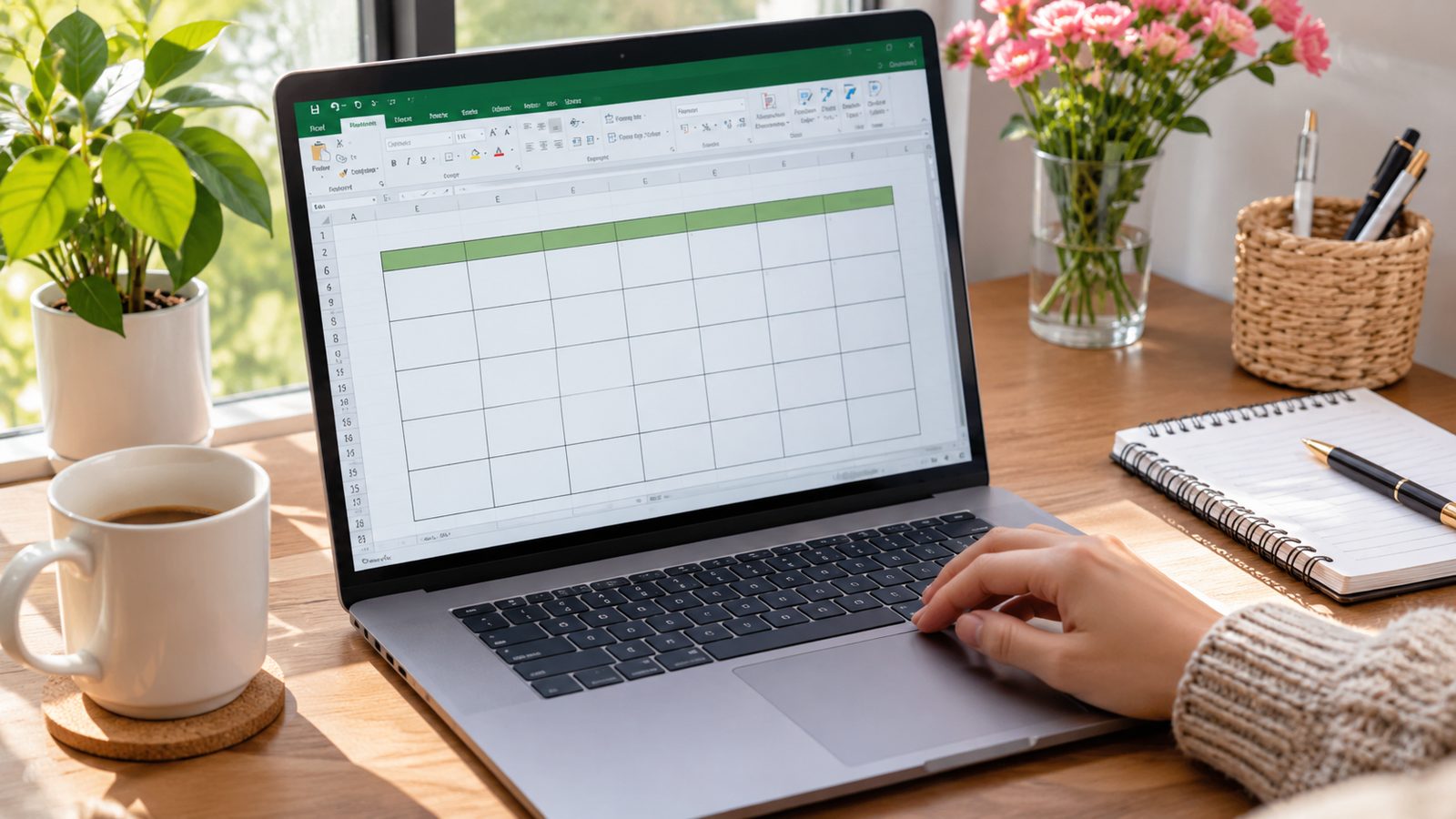
You can create calendar in Excel with a built-in template, a blank worksheet, or formulas. Templates give you the fastest setup for everyday planning. Formula-based calendars work better when you want dates to change automatically. Microsoft provides calendar templates through Excel’s New workbook screen. Many templates already contain date formulas, formatting, and printable layouts. Editing those formula cells directly can stop automatic updates. Quick answer: Open Excel, select File > New, search for “calendar,” choose a template, and select Create. You can also build a seven-column calendar manually. For a reusable monthly planner, formulas such as DATE, WEEKDAY, and SEQUENCE can generate dates automatically when the month changes.
Excel Calendar Methods at a Glance
| Method | Best For | Difficulty | Updates Automatically | Printing |
|---|---|---|---|---|
| Built-in template | Fast personal or work planning | Easy | Often | Easy |
| Manual calendar | Custom layouts and simple schedules | Easy | No | Easy |
| Formula calendar | Reusable monthly planners | Medium | Yes | Easy |
Key Takeaways
* Use an Excel template when speed matters most. * Build from scratch when you want full control over spacing and design. * Use formulas when you need a reusable month or year selector. * U.S. calendars commonly place Sunday in the first column. * Check print scaling before printing a full monthly grid. * Keep event data separate if you expect the schedule to grow.
How to Create Calendar in Excel Using a Template
A built-in template is the easiest choice for most users. Microsoft offers calendars for monthly, yearly, school-year, vacation, task, and daily planning. You can customize colors, fonts, notes, and other details after opening one. Follow these steps:
1. Open Microsoft Excel. 2. Select File. 3. Choose New. 4. Search for calendar in the template search box. 5. Select a design that matches your needs. 6. Choose Create. 7. Save the workbook with a clear file name.
Mac users can choose File > New from Template and search for calendars. Excel for the web also provides templates through its New workbook options. Microsoft documents both workflows in its official support guidance. Look for an “any year” template if you plan to reuse the file. These templates often calculate displayed dates from a year or month cell. Avoid replacing calculated date cells unless you understand their formulas. Templates work especially well for families, students, office schedules, and printable planners. They also reduce formatting work when you need something quickly. Readers interested in other workplace tools can browse Mindspaper’s broader Tech coverage.
Method Two: Build a Monthly Calendar From Scratch
A manual workbook gives you complete control over the calendar layout. It works well when you need larger writing areas or unusual formatting. You also avoid removing formulas accidentally because you create every element yourself. Start with a blank worksheet and use columns A through G. Type the weekdays across one row, beginning with Sunday for a traditional U.S. layout. Monday-first calendars also work if that format suits your workplace. Your basic setup can follow this structure:
| Column | Heading |
|---|---|
| A | Sunday |
| B | Monday |
| C | Tuesday |
| D | Wednesday |
| E | Thursday |
| F | Friday |
| G | Saturday |
Place the month and year above the weekday row. You can merge cells A1 through G1 for a centered heading. Increase the row height beneath the weekdays to leave space for notes. Next, enter each date under its correct weekday. Continue across seven columns before moving to the next row. Most monthly designs need six date rows to handle every possible month. Add borders around every date box after entering the dates. Use a light background color for weekends if you want stronger visual separation. Keep colors simple if you plan to print the schedule frequently. This approach suits work schedules, family plans, classroom calendars, and editorial calendars. A clear layout often matters more than decorative formatting. Mindspaper’s discussion of office productivity and employee well-being also shows why practical work environments matter.
Method Three: Make an Excel Calendar That Updates Automatically
A dynamic calendar is more useful when you reuse the workbook every month. Instead of typing each date again, formulas calculate the correct dates. Changing one month value can then refresh the entire calendar. In newer Excel versions, the SEQUENCE function can create a complete six-row calendar grid. DATE creates the selected month’s starting date. WEEKDAY helps place that date under the correct weekday. For example, place the first day of your chosen month in cell B2. You could enter a date such as 1/1/2027 there. Then place this formula in the upper-left cell of your calendar grid: =SEQUENCE(6,7,$B$2-WEEKDAY($B$2,1)+1,1) The formula generates 42 consecutive dates across six rows and seven columns. Format the cells with the custom number format d to show only day numbers. The underlying cells will still contain complete Excel dates. A Sunday-first version uses the WEEKDAY setup shown above. You can change the weekday calculation for a Monday-first layout. Current Excel tutorials commonly use SEQUENCE for reusable calendars in Microsoft 365 and newer releases. Some generated dates will belong to the previous or following month. Conditional formatting can make those dates gray or hide their text. This treatment keeps the current month visually clear.
How to Add Events, Holidays, and Important Dates
A calendar becomes more useful when events are easy to recognize. Use consistent colors for meetings, deadlines, appointments, and personal events. Avoid using too many colors because the page can become difficult to scan. For U.S. users, you may want to mark federal holidays and important business dates. Enter them manually for a simple planner. A more advanced workbook can store holidays in a separate table. Keeping event data separate makes future editing easier. You can create columns for date, event, category, and notes. Formulas can then reference that table without rebuilding your calendar. Excel can also support project planning alongside calendar dates. This makes it useful for schedules where dates connect to tasks or milestones. Mindspaper’s article about workflow automation and scheduling tools provides related planning context.
How to Highlight Weekends With Conditional Formatting
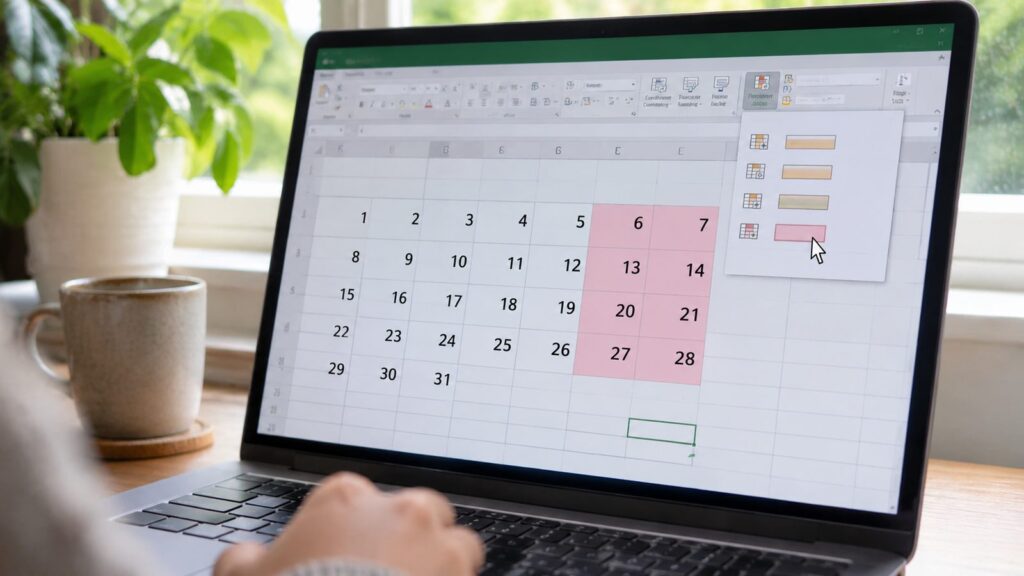
Weekend formatting helps readers identify workdays quickly. Select the calendar date range before creating the formatting rule. Then use a formula based on Excel’s WEEKDAY function. For a Sunday-first calendar, you can apply separate rules to Saturday and Sunday. Choose a light fill color rather than a strong background. The calendar will remain readable when printed. You can create similar rules for overdue dates or upcoming deadlines. Conditional formatting changes automatically when the underlying dates change. That makes it especially useful with a formula-driven monthly planner.
How to Print an Excel Calendar on One Page
A calendar that looks correct on screen can still print poorly. Wide columns may push the final weekday onto another page. Large row heights can create a second printed sheet. Open the Page Layout tab before printing. Choose landscape orientation for most monthly calendars. Then set the worksheet to fit one page wide and one page tall. Use Print Preview before sending the file to your printer. Check that weekday headings, dates, borders, and notes remain readable. Microsoft also recommends previewing calendar worksheets before printing. You can remove ordinary worksheet gridlines before printing. Keep the borders you intentionally added to the calendar. This creates a cleaner result for wall calendars or desk planners.
Common Excel Calendar Problems and Fixes
One common problem occurs when dates appear as numbers such as 46300. Those values are Excel date serial numbers. Change the cell format to a date format or the custom format d. Another issue appears when a template stops changing years automatically. A formula cell may have been replaced with typed text. Reopen a clean copy or restore the original formula. Printing problems usually come from column width, margins, or page scaling. Check Print Preview and reduce margins when necessary. Landscape orientation usually gives a monthly grid more horizontal space. Some users also expect Excel to provide calendar-app features. A spreadsheet does not automatically behave like Outlook or Google Calendar. Reminders, invitations, and appointment notifications require other tools or additional automation.
Template vs. Formula Calendar: Which Should You Choose?
Choose a template when you need a usable calendar within minutes. Templates already include much of the design and formatting work. They are usually the easiest choice for occasional planning. Choose a formula calendar when you expect to reuse the workbook regularly. It takes longer to build at first. The time investment pays off because month changes require less manual editing. Choose a manual calendar when appearance matters more than automation. This method gives you control over every cell and spacing decision. It also works well for printed planners with large writing areas. Excel is especially practical when your schedule already depends on spreadsheet data. A second screen can also make large planning workbooks easier to manage. Mindspaper covers that use case in its portable productivity display review.
When Excel Is Not the Best Calendar Tool
Excel works well for planning, printing, tracking, and custom schedules. It becomes less convenient when several people need real-time appointment notifications. Dedicated calendar software handles invitations and reminders more naturally. A spreadsheet also requires deliberate structure as event volume grows. Large schedules can become difficult to manage without separate data tables. Consider a dedicated scheduling system when constant collaboration becomes essential. For personal planners, editorial schedules, classroom plans, and project calendars, Excel remains flexible. You control the layout, formulas, categories, and printed appearance. That flexibility is the main reason to build the calendar inside a workbook.
Frequently Asked Questions
Does Excel have a built-in calendar template?
Yes, Excel provides several calendar templates through its New workbook screen. Microsoft offers monthly, yearly, school-year, and planning layouts. Available designs can vary by Excel version and platform.
How do I create calendar in Excel without a template?
Start with seven columns for the days of the week. Add the dates beneath the correct weekday and format each date box. Borders, row heights, and colors can then create the finished monthly layout.
How do I make an Excel calendar update automatically?
Use a month or date cell as the calendar’s input. Functions such as DATE, WEEKDAY, and SEQUENCE can calculate the displayed dates. Changing the input month then moves the calendar dates automatically.
Can I make a yearly calendar in Excel?
Yes, you can use a yearly template or create twelve monthly worksheets. Copying a completed monthly layout can reduce repeated formatting work. Formula-based sheets can also reference one shared year value.
Can I add U.S. holidays to an Excel calendar?
Yes, holidays can be entered manually or stored in a separate date table. Conditional formatting can highlight matching holiday dates. Verify holiday dates before publishing or distributing the calendar.
Build the Version That Matches Your Workflow
Start with Excel’s built-in templates if you need a calendar quickly. Build a custom grid when you need more control over appearance. Choose formulas when you want a reusable planner that changes automatically. Keep the first version simple before adding advanced formatting or event formulas. Test a printed copy if the calendar will be used on paper. A clean, readable schedule is more useful than a complicated workbook. Once your layout works, save an untouched master copy. Duplicate that file for future months, projects, or teams. This protects your formulas while giving you a reusable planning system. —