



A page fault in a nonpaged area is a critical Windows blue-screen error that occurs when the operating system cannot access memory that should always remain in RAM. It commonly affects Windows 10 and Windows 11 systems with 8GB, 16GB, 32GB, or even 64GB of DDR4 memory. High-performance setups with Intel Core i7/i9 or AMD Ryzen 7/9 processors, along with SSDs delivering 500 MB/s to 3 GB/s or 7200 RPM HDDs, are often impacted during heavy tasks like gaming, CAD, or video rendering.
A page fault in a nonpaged area may result from faulty RAM modules, corrupted system files such as PAGEFILE.sys, outdated drivers, disk errors, or software conflicts. These issues can cause sudden crashes, freezes, or restarts, making proper system maintenance, hardware testing, and driver updates essential for stable performance and reliable memory handling.
| Causes | Fixes |
| Faulty RAM (8–32GB DDR4, dual-channel errors) | Test with MemTest86, replace bad RAM |
| Corrupt system files (PAGEFILE.sys, NTFS.sys, HDD/SSD errors) | Run SFC /scannow and DISM repair |
| Outdated drivers (NVIDIA RTX, Intel 11th Gen) | Update or reinstall official drivers |
| Disk issues (bad sectors, 1TB HDD, NVMe SSD faults) | Run chkdsk /f /r and update firmware |
| Software conflicts (antivirus, 8–16GB RAM load) | Disable apps, clean boot system |
Understanding Page Fault In A Nonpaged Area: Causes & Fixes
Causes
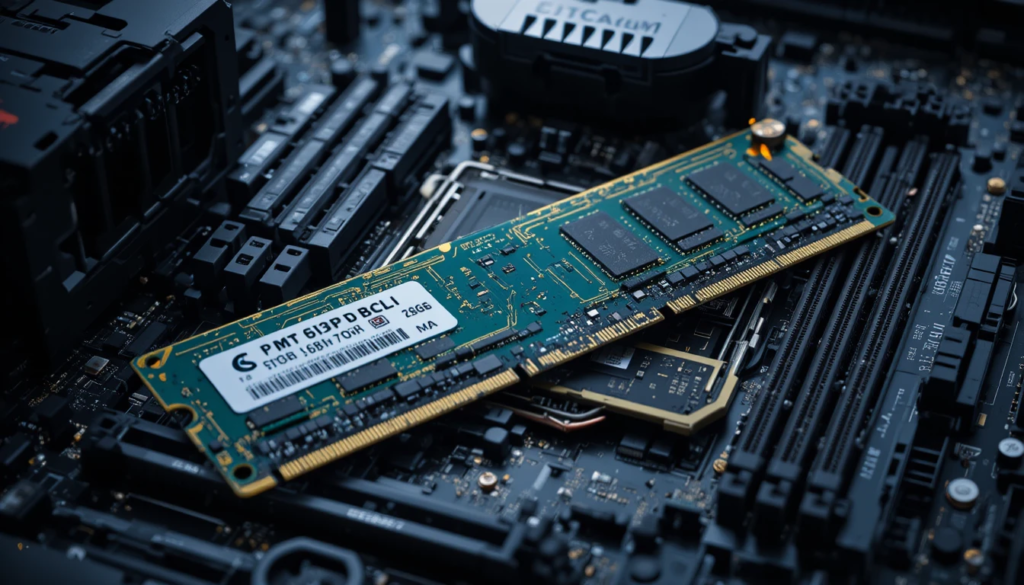
Faulty RAM Modules
Defective RAM sticks often trigger system crashes in Windows 10 and 11. In dual-channel setups with 8GB, 16GB, or 32GB DDR4 memory, a single faulty stick can cause blue screens during gaming, video rendering, or virtualization. Systems may fail when accessing addresses above 4GB. Testing modules individually and replacing defective ones prevents recurring errors. Proper seating and BIOS recognition are crucial for memory-intensive tasks.
Due to Corrupted System Files
A page fault in a nonpaged area occurs when Windows system files, such as PAGEFILE.sys or NTFS, are accessed.sys become corrupted. Failed updates, sudden shutdowns, or hard drive issues on HDDs (7200 RPM) and SSDs (500 MB/s–3 GB/s) can damage these files. When the OS attempts to access missing or invalid memory pages, it crashes. Repairing files or restoring Windows can prevent errors in high-memory operations or virtual machines.

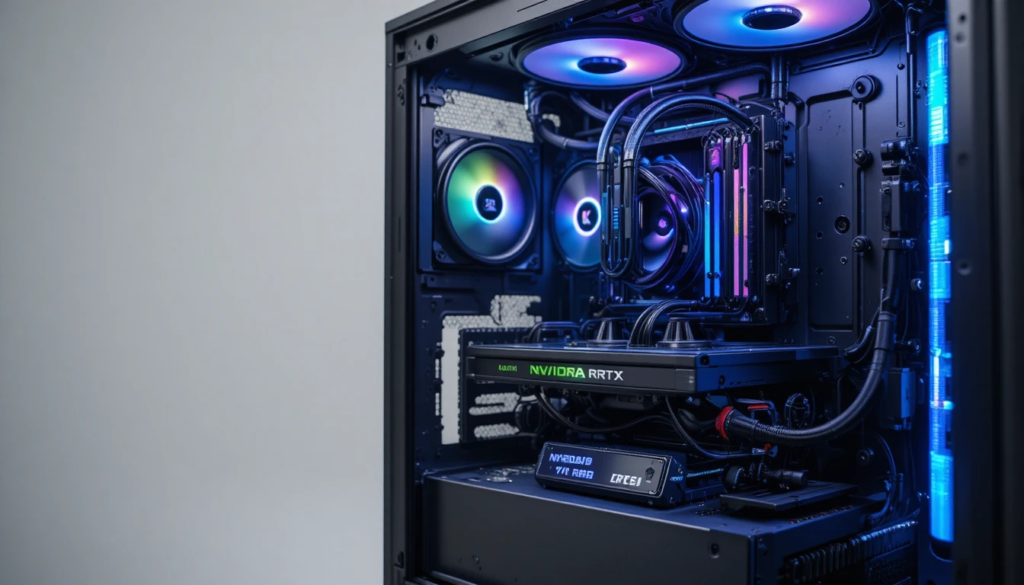
Outdated or Faulty Drivers
Driver conflicts, especially with NVIDIA RTX 3060/3080 GPUs or Intel 11th Gen chipsets, often lead to system instability. Mismanaged memory allocation in storage or network drivers can cause blue-screen errors. Updating drivers or reinstalling ensures correct firmware interaction with Windows 10/11. High-performance systems with 16GB–32GB of RAM benefit from driver stability for CAD, 3D rendering, or large-dataset processing.
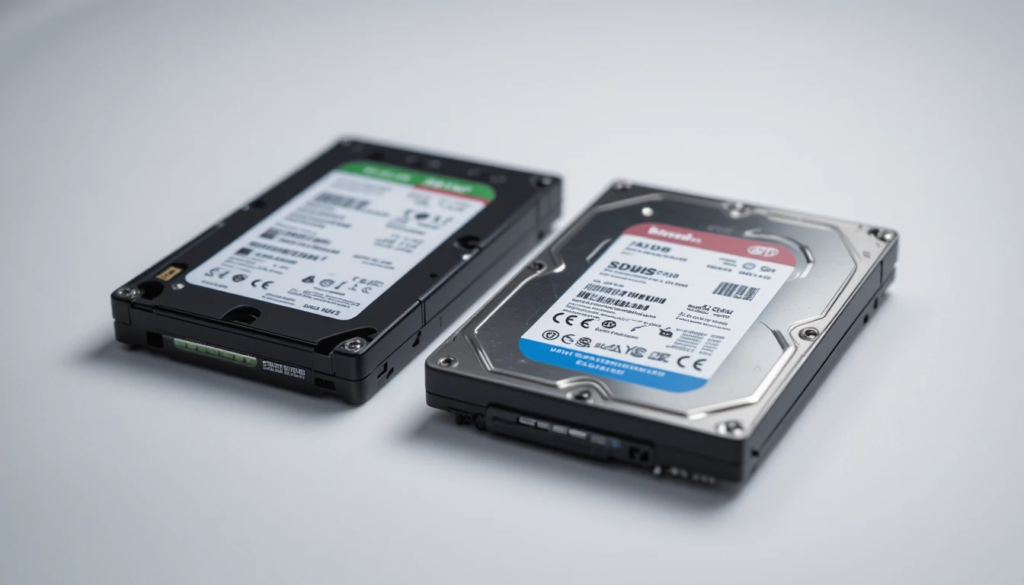
Disk Issues
Storage failures can trigger a page fault in a nonpaged area. Bad sectors on 1TB HDDs or 500GB–2TB NVMe SSDs prevent access to the virtual memory (pagefile). Boot errors, transfer failures, or game crashes often indicate this. Running chkdsk or manufacturer SSD utilities fixes errors. Ensuring proper TRIM support and firmware updates on SSDs improves stability for heavy file operations and memory-intensive programs.
Antivirus or Software Conflicts
Aggressive antivirus programs or new software may block memory pages, leading to crashes. Memory-intensive applications on 8GB–16GB RAM systems exacerbate this issue. Real-time scanning can interfere with virtual memory or page file—sys operations. Disabling or uninstalling the conflicting program often restores stability. Performing a clean boot isolates problematic applications.

Solutions
Check and Repair RAM
To fix a page fault in a nonpaged area, test RAM using Windows Memory Diagnostic or MemTest86. Modules in 8GB–32GB DDR4 setups should be checked individually. Replacing defective sticks ensures stable memory access for Windows 10/11. BIOS recognition and correct seating are essential. High-frequency tasks, like virtualization with multiple VMs, require error-free RAM. Properly configured dual-channel setups reduce access errors during continuous load.
Update Drivers
Updating drivers resolves page faults for GPUs, network adapters, and storage controllers. Windows 10/11 systems with NVIDIA RTX 20–30 series GPUs, Intel/AMD chipsets, or NVMe SSDs benefit from updated firmware. Reinstalling drivers prevents incorrect memory allocation. Correct driver versions improve stability in CAD, video editing, and virtualization.
Run Disk Checks
Disk checks can fix the page fault in a nonpaged area by repairing bad sectors. Commands like chkdsk /f /r scan HDDs (7200 RPM, 1–2 TB) and SSDs (500 MB/s–3 GB/s). Scans may take 60–120 minutes depending on disk size. Repairing virtual memory files and ensuring the integrity of PAGEFILE.sys restores access to nonpaged areas. Maintaining drives prevents crashes during boot, heavy read/write tasks, or large file transfers.
Repair System Files
Repairing system files resolves the page fault. Using sfc /scannow and DISM /Online /Cleanup-Image /RestoreHealth restores PAGEFILE. sys, NTFS.sys, and other critical files. Windows 10/11 requires sufficient free disk space (20–50GB) during repairs. Ensuring system integrity ensures proper memory page access and prevents crashes during high-demand tasks such as CAD rendering, virtual machines, or database operations.
Remove Conflicting Software
Software conflicts can trigger a page fault in a nonpaged area. Turning off aggressive antivirus software or removing recently installed programs prevents memory access violations—systems with 8–16GB RAM experience fewer blue screens when memory-intensive applications run without interference. Performing a clean boot runs only essential services. Adjusting virtual memory settings ensures smooth operation during gaming, 3D rendering, and large-scale simulations while maintaining Windows 10/11 system stability.
Command Prompts Codes
| Solution | Command |
| Repair System Files | sfc /scannow |
| Restore Windows Image | DISM /Online /Cleanup-Image /RestoreHealth |
| Check Disk | chkdsk C: /f /r |
| Test RAM | mdsched.exe |
| Clean Boot Software | msconfig |
Understanding This Windows Blue Screen Error in Simple Terms
A page fault occurs when the Windows operating system attempts to access memory that should always remain in RAM but cannot be found there. This error typically results in a blue screen, sudden system crash, or reboot. It often affects users running Windows 10, 11, or server editions, especially when heavy multitasking or large applications, such as video editing or CAD software, are in use.
Memory and Storage Systems Work in Windows
- A page fault in a nonpaged area occurs because the system expects certain data to reside permanently in RAM.
- Modern PCs often have 8GB to 64GB of RAM, with SSDs and HDDs acting as temporary storage.
- When Windows cannot locate essential data in the nonpaged area, it triggers this error, indicating issues with virtual memory allocation, page tables, or corruption in critical system files used by the OS.
Role of RAM and Hardware Performance
RAM quality, speed, and motherboard compatibility directly impact how efficiently Windows handles memory. Faulty DIMMs, mismatched speeds (e.g., 2400 MHz vs 3200 MHz), or overheating can disrupt stable performance. Users with dual-channel 16GB of RAM or more often experience fewer crashes. Even high-performance setups with Intel Core i7/i9 or AMD Ryzen 7/9 can encounter instability if memory modules degrade or system voltage fluctuates beyond standard tolerances.
Software, Drivers, and Operating System Interaction Issues
- Outdated drivers, incompatible software, or corrupted Windows system files often cause a page fault in a nonpaged area.
- This error frequently appears during gaming, large file transfers, or running virtualization platforms like VMware.
- Modern OS versions manage memory differently, and conflicts in driver-level access can cause the system to reference a memory location that is no longer valid, triggering crashes or unexpected reboots within seconds.
Best Practices to Keep Your PC Running Smoothly
Maintaining system stability involves routine checks, including memory diagnostics, disk integrity scans, and updating firmware. Monitoring temperatures between 20°C and 75°C, verifying RAM seating, and keeping system drivers up to date reduce the likelihood of page faults. Users should also manage virtual memory carefully, allocate 1.5–2 times physical RAM for paging, and avoid running unverified system utilities.
Conclusion
In conclusion, the page fault in a nonpaged area is a serious Windows error that occurs when essential data cannot be accessed in RAM. It commonly arises from faulty RAM, corrupted system files, outdated drivers, disk problems, or software conflicts. High-performance systems with 8GB–64GB DDR4 memory, SSDs, or 7200-RPM HDDs are particularly vulnerable during intensive tasks such as gaming, CAD, or video editing. Regular maintenance, memory diagnostics, driver updates, and disk checks are crucial to prevent this error. Addressing these factors ensures system stability, smooth performance, and reliable access to nonpaged memory areas.
Want to know about SteelSeries Rival 110 Review: Features, Performance, and 7 Reasons It’s Still a Top Budget Gaming Mouse Check out our Tech category.
FAQs
It occurs when Windows 10/11 cannot locate essential memory in RAM, causing blue screens on systems with 8–64GB of RAM during heavy multitasking or editing.
Faulty DDR4 modules, 8–32GB DIMMs, or mismatched dual-channel speeds, such as 2400 MHz versus 3200 MHz, can lead to system instability and sudden blue screens.
Defective sectors on 1TB HDDs (7200 RPM) or 500GB–2TB NVMe SSDs block pagefile access, leading to crashes during file transfers or virtual memory operations.
Outdated GPU or network drivers, especially NVIDIA RTX or Intel 11th Gen, or aggressive antivirus software can conflict with memory, causing blue-screen errors on 8–16GB of RAM.
Test RAM with MemTest86, run chkdsk /f /r on HDDs/SSDs, and update drivers regularly for 8–32GB Windows 10/11 systems to ensure stability.